How to Send Projects from Home Planner to Your CRM
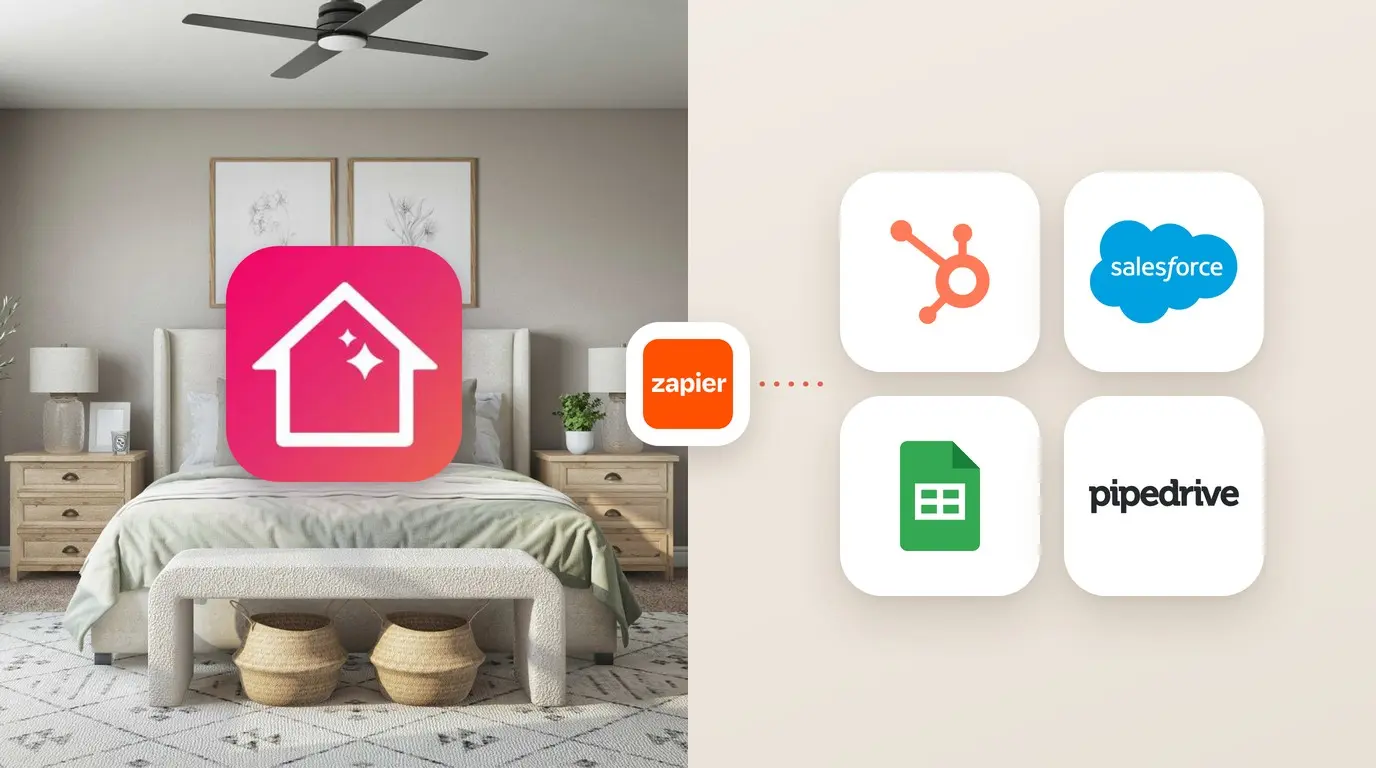
Connect HubSpot, Pipedrive, Bitrix24, Salesforce, Google Sheets or your own system, and send a project with rooms, products, prices and the floor plan in one step.
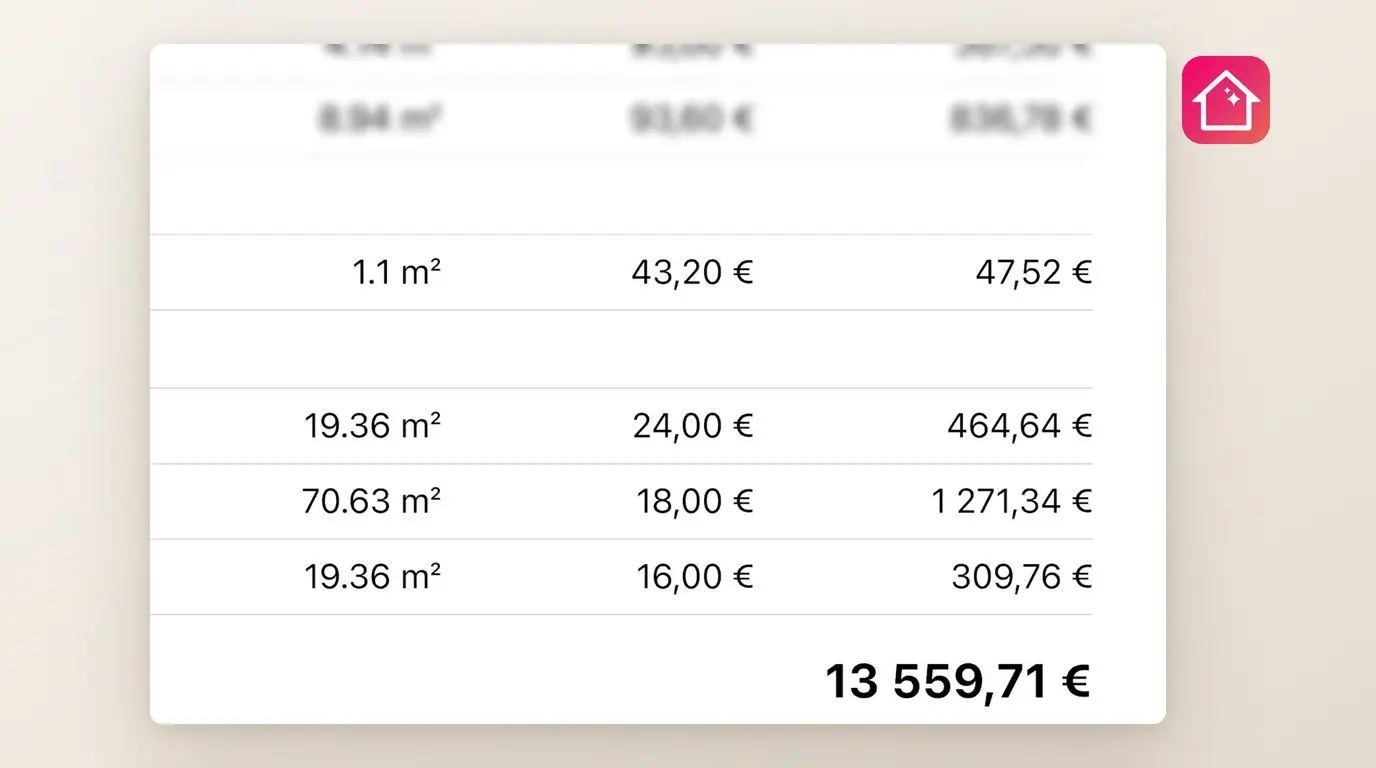
Send projects from Home Planner to your CRM and each one lands as a single record: the link to the project, rooms, products with SKU, quantities, prices, the total and a link to the floor plan PDF. No copying from screenshots, no retyping estimates.
This guide shows how to connect HubSpot, Pipedrive, Bitrix24, Salesforce or Google Sheets through Zapier, and how to connect any other system by its URL.
How it works
- Connect once. Add a connection in the app: pick your CRM or paste the URL of your own system.
- Design. Plan the rooms with your client and furnish them with products and prices.
- Send. Select Share → Send to … on the open project. The project lands in your CRM in seconds.
Before you start
| You need | Why |
|---|---|
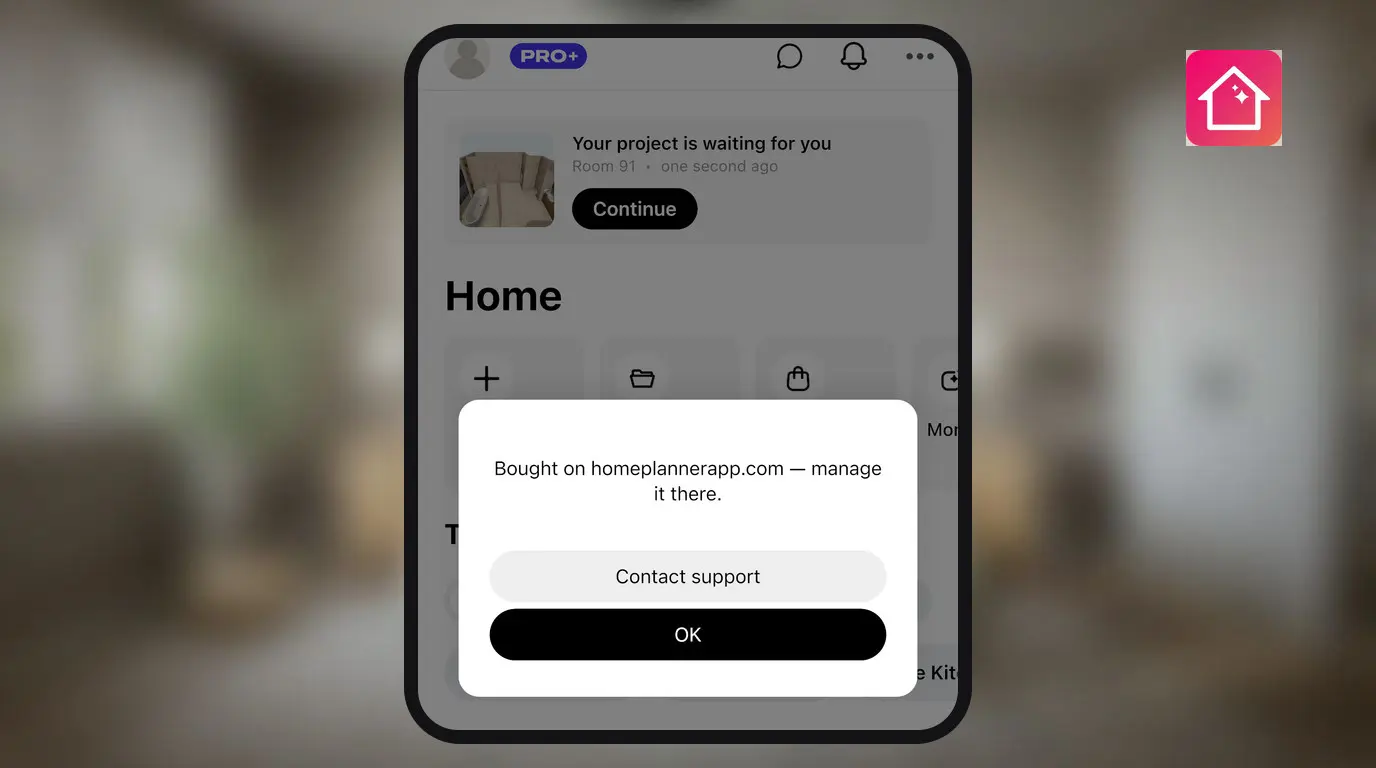
| PRO++ or the free trial | Sending to a CRM is part of PRO++. Your first connection starts a 14-day free trial if you have never had PRO++ — no payment needed. When PRO++ or the trial ends, the Send to … rows disappear from Share; the connections stay saved and work again with no new setup. |
| A Home Planner account | Connections belong to your account and work on all your devices. The app asks you to sign in when you save the first one. |
| A project saved to the cloud | A project stored only on this device can't be sent. The record links to the online copy of the project. |
| A Zapier account (for HubSpot, Pipedrive, Bitrix24, Salesforce, Google Sheets) | Zapier passes the project to your CRM. Zapier has free and paid plans. Salesforce needs a paid Zapier plan (see Zapier pricing). |
Connect your CRM via Zapier
The steps are the same for every system. Only the CRM action at step 5 in Zapier differs — see the table below.
In Home Planner
- Go to Settings → Business → CRM & spreadsheets. Or open any project and select Share → CRM & spreadsheets.
- Select Add connection and pick your system. You can add up to 3 connections.
- Select Copy key. The key links Zapier to your Home Planner account. A new key turns the old one off right away — paste the new key into Zapier, then turn the Zap off and on again. If you have never had PRO++, this starts your 14-day free trial.
In Zapier
- Add Home Planner to your Zapier account. Home Planner is a public app on Zapier, listed on its page: https://zapier.com/apps/home-planner/integrations. If Home Planner shows Open the ready-made Zap, select it instead: the trigger and your CRM step are already set up. Continue from step 3: you still connect your accounts and map the fields.
- Create a Zap with the trigger Home Planner → Project Sent.
- Connect a new account and paste the key into Connection key. Zapier shows the connection name from the app.
- Test the trigger. Zapier loads a sample project, so you can map fields before your first real send.
- Add the action for your CRM, connect your CRM account and map the fields (see the table). Also fill in any other field Zapier marks as required, such as a pipeline, a stage or a close date.
- Turn the Zap on. Back in the app, the connection status changes to Working. If it still says "The Zap is not on yet", turn the Zap off and on again.
| System | Zapier action | Suggested mapping |
|---|---|---|
| HubSpot | Create Deal | Project name → deal name; Total sum → amount; Project link, Products (text) and PDF link → description |
| Pipedrive | Create Deal, then Create Note | Deal: Project name → Title; Total sum → Deal Value; Currency → Currency. Note: Products (text), Project link and PDF link → Content; ID from the Create Deal step → Deal ID |
| Bitrix24 | Deal Action, with Action set to Add Deal | Project name → title; Total sum → amount; Products (text), Project link and PDF link → comment |
| Salesforce | Create Record → Opportunity | Project name → name; Total sum → amount; Created → close date, then change it to the expected date in Salesforce; Products (text), Project link and PDF link → description. Needs a paid Zapier plan. |
| Google Sheets | Create Spreadsheet Row | Put the column names in row 1 of the sheet first. Project name, Total sum, Currency, Project link and Updated → separate columns, one row per sent project |
The PDF link works for 7 days. The Project link has no such limit, so rely on that one in your CRM. To keep the PDF, download it within 7 days and attach it to the record.
Send a project
- Open the project. Make sure the estimate is ready: products, quantities and prices are what the client will see.
- Select Share → Send to …. Each connection that is on has its own row, for example Send to HubSpot.
- Check the result. The app shows Project sent to HubSpot with the number of rooms and products. If your system doesn't answer, the app says We'll retry automatically: Home Planner tries again after 1 minute, 10 minutes and 1 hour.
Sent the same project twice? An unchanged project sent again within 24 hours is not duplicated. Change anything — a price, a quantity, the plan — and the next send creates a new record.
Some products have no SKU? They are sent with Home Planner codes. The app says how many right after the send. Materials are sent without a code.
What a record contains
The same fields reach Zapier and your own URL. Prices and totals match the project estimate in the app.
| Field | What it holds |
|---|---|
| planName | Project name |
| planNumber | Project ID in Home Planner. Zapier shows it as Project ID. |
| revisionNumber | The plan's revision. Zapier shows it as Revision. |
| revisionUrl | Link to the project online. Your client opens it in a browser or in the app. |
| pdfUrl | Floor plan PDF. Present when your subscription includes drawing export. The link works for 7 days: download the file and attach it to the record to keep it. |
| totals.sum, totals.currency, totals.items | Estimate total, its currency and the number of lines |
| productsText | The whole estimate as readable text: rooms, products, SKU, quantity × price. Best for a note or a description field. |
| rooms[] | Each room: name, type, area, size, and its items |
| rooms[].items[] | Each product or material: itemNumber (SKU, empty for a material), name, quantity, price, total, imageURL, components |
| client_reference_id | Unique id of this send |
| created, updated | When the project was created and last saved |
Example of productsText:
Living room:
- Sofa Oslo (SOFA-1042): 1 × 899.00 = 899.00 USD
  - Cushion (CUSH-17): 2 × 25.00 = 50.00 USD
- Oak flooring: 1 × 540.00 = 540.00 USD

Total: 1489.00 USD
Connect your own system by URL (webhook)
For a system that isn't in the list, or your own server. Home Planner posts the record as JSON to your HTTPS address.
- Select Add connection → Other system (your URL). Enter a button name (up to 24 characters) and the URL. It must start with https://.
- The app sends a test request (its body has test: true, so your server can ignore it) and shows, for example, Checked: response 200 in 0.4 s.
- Recommended: copy the Signing secret and check every request with it on your server.
The request
| Part | Value |
|---|---|
| Method, body | POST, Content-Type: application/json, the record described above |
| X-HomePlanner-Signature | t=<unix time>,v1=<hex>, where v1 = HMAC-SHA256(secret, t + "." + body) |
| X-HomePlanner-Delivery | Delivery id. It stays the same on every retry — use it to skip a repeat. |
Verify the signature against the raw request body, exactly as received, before any JSON parsing. A body parsed and serialised again never matches the signature.
const crypto = require('crypto');

// rawBody: the request body exactly as received (Buffer or string), before JSON parsing.
// Express: app.post('/home-planner', express.raw({ type: 'application/json' }), handler)
function isFromHomePlanner(rawBody, header, secret) {
  if (!header) return false;
  const parts = Object.fromEntries(header.split(',').map(p => p.split('=', 2)));
  if (!parts.t || !parts.v1) return false;
  if (Math.abs(Date.now() / 1000 - Number(parts.t)) > 300) return false;
  const expected = Buffer.from(
    crypto.createHmac('sha256', secret).update(`${parts.t}.${rawBody}`).digest('hex'), 'hex');
  const received = Buffer.from(parts.v1, 'hex');
  return expected.length === received.length && crypto.timingSafeEqual(expected, received);
}
Your answer
- Any 2xx within 15 seconds means delivered.
- No answer, a 5xx, 408 or 429: Home Planner retries after 1 min, 10 min and 1 h, then stops after 2 hours.
- Any other 4xx, a redirect or a certificate error is final: the connection turns Error. Redirects are not followed.
- Addresses in private or local networks are not allowed, for example localhost, 127.*, 10.*, 172.16–31.*, 192.168.* and 169.254.*.
Google Sheets without Zapier. A Google Apps Script web app works as the URL. Its usual 302 answer to script.googleusercontent.com counts as delivered.
Statuses and errors
| In the app | What it means | What to do |
|---|---|---|
| Working | Projects reach Zapier or your URL. | Nothing. |
| Connected | Linked through a service other than Zapier. Projects arrive while your scenario there is on. | Keep the scenario on. |
| The Zap is not on yet | Zapier hasn't subscribed to this key. | Turn the Zap on. If it is on, turn it off and on again. |
| Off | You switched the connection off. Its Share row is hidden. | Switch it on in the connection. |
| Error | The last send failed. The reason is shown under the status. | Fix the reason, then send again from Share. |
| The server didn't respond | No answer within 15 seconds. | Check that your server is up. |
| Server response: 404 | Your system refused the request. | Check the URL and your server log. |
| The site's certificate failed verification | The HTTPS certificate is expired or invalid. | Renew the certificate. |
| Couldn't deliver for 2 hours, sending stopped | All retries failed. | Fix the receiver, then send again. |
| This project is stored only on this device | The project isn't saved to the cloud. | Turn on cloud saving for the project. |
Questions and answers
How much does it cost?
Sending to a CRM is included in PRO++. Your first connection starts a 14-day free trial if you have never had PRO++. Zapier has free and paid plans. As of November 2026, Salesforce needs a paid Zapier plan: check Zapier pricing.
Does my client see anything?
No. The record goes to the connection you set up (Zapier or your URL). Your client sees the project only when you share the link.
Is my CRM data safe?
Home Planner only sends — it never reads your CRM. You can replace the key or the signing secret at any moment with New key or New secret.
Trademark notice. Home Planner is independent of HubSpot, Inc. and is not endorsed by, sponsored by or affiliated with HubSpot, Inc. Home Planner is independent of the other brands named on this page and is not endorsed by, sponsored by or affiliated with them.
Try it on your own project
Free room planner and interior design app